Where does the file go in Chrome?
The default folder
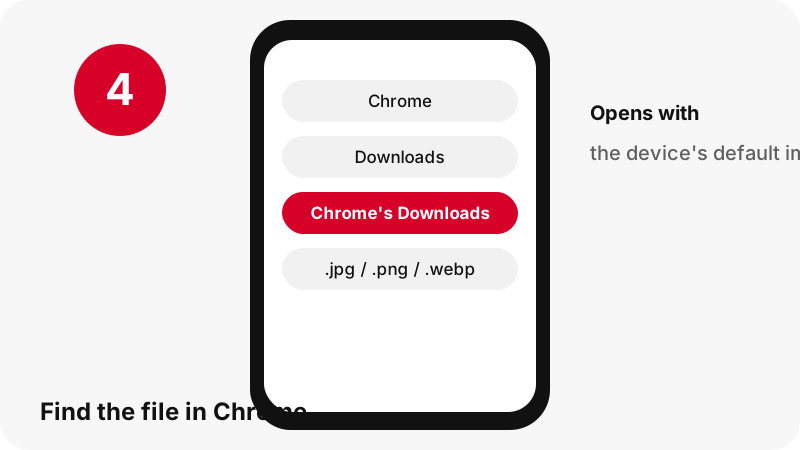
Chrome on a computer saves to the Downloads folder by default (\Users\<username>\Downloads on Windows); Chrome for Android uses the default download location; Chrome on iPhone lets you pick Files on the “Save in…” screen.
Finding it right after the download
On a computer, the download icon next to the address bar; on Android, More › Downloads.
Chrome at a glance
| Question | Answer in Chrome |
|---|---|
| Browser | Chrome |
| Where the file lands | Chrome on a computer saves to the Downloads folder by default (\Users\<username>\Downloads on Windows); Chrome for Android uses the default download location; Chrome on iPhone lets you pick Files on the “Save in…” screen. |
| How to see it | On a computer, the download icon next to the address bar; on Android, More › Downloads. |
| Opens with | The device's default image app |
| Change the folder | Settings › Downloads › Change (computer). |
What you get: the original JPG, PNG or WebP
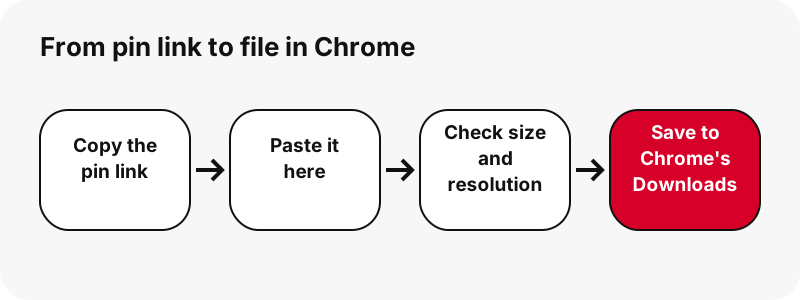
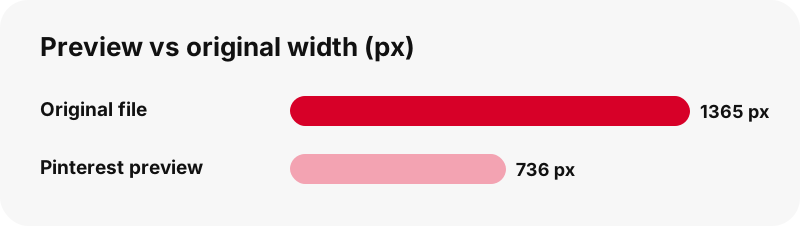
For a picture pin the tool fetches the original file Pinterest stores, not the 736-pixel preview the app shows. In our test a carousel picture listed as 736 pixels wide downloaded as an original of 1365×1706 pixels (194 KB). The format stays what the uploader used, usually JPG, sometimes PNG or WebP.
| Detail | Images from Pinterest |
|---|---|
| File extension | .jpg / .png / .webp |
| Format | the original JPG, PNG or WebP |
| Largest version | the original upload size (often larger than the 736 px preview) |
| Opens in Chrome with | The device's default image app |
| Preset on this page | Image (original) |
Which app opens it in Chrome?
The device's default image app.
Keep it with your photos and media
On iPhone or iPad, Chrome can save an image with touch and hold › Save Image; other files go to Files when you choose it on the “Save in…” screen.
Good to know in Chrome
Chrome may block a download if the site or owner prevents it; our download links are normal file downloads.
If the download does not show up in Chrome
- Check Chrome's Downloads first: On a computer, the download icon next to the address bar; on Android, More › Downloads.
- Make sure the pin is public. Private pins and secret boards cannot be read without logging in, and this tool never asks for your Pinterest password.
- Links expire after one hour. If a button stops working, paste the pin link again.
- A pin.it short link must be complete: copy it again from Share › Copy link.
Same images on other devices
- Download Pinterest Images on iPhone
- Download Pinterest Images on Android
- Download Pinterest Images on PC
- Download Pinterest Images on Mac
- Download Pinterest Images on iPad
- Download Pinterest Images on Chromebook
- Download Pinterest Images on Windows
- Download Pinterest Images on Samsung Galaxy
- Download Pinterest Images on Xiaomi
- Download Pinterest Images on Linux
- Download Pinterest Images in Safari
Other downloads in Chrome
Frequently asked questions
Where do downloaded Pinterest images go in Chrome?
Chrome on a computer saves to the Downloads folder by default (\Users\<username>\Downloads on Windows); Chrome for Android uses the default download location; Chrome on iPhone lets you pick Files on the “Save in…” screen.
How do I find a downloaded Pinterest file in Chrome?
On a computer, the download icon next to the address bar; on Android, More › Downloads.
Which app opens the original JPG, PNG or WebP in Chrome?
The device's default image app.
Can I choose another download folder in Chrome?
Settings › Downloads › Change (computer).
What is the best quality I can get?
The original upload size (often larger than the 736 px preview). The tool never upscales or renames a smaller file as HD.
Do I need an app or a Pinterest account?
No. It runs in the browser (Chrome), with no sign-up and no app to install.
Is PinDownload part of Pinterest?
No. PinDownload is an independent tool and is not affiliated with Pinterest. It only reads public pins.
Can I download private pins?
No. Only public pins can be read without logging in; private pins and secret boards are out of reach by design.
Is the picture the full original size?
Yes. The tool asks for the original file, not the 736-pixel preview, and shows its real pixel size and file size before you save it.
Why is my image a PNG or WebP?
The format stays the one the uploader used. Nothing is converted, so there is no extra quality loss.
Guides
Images — Save the original full-size picture, not the preview.